How I built my designerly CV
design
As a Front End Engineer – a weird yet oddly common cross between software engineer and designer – I made three self-discoveries early on:
- I am often looking for work
- I care about aesthetics
- I can hack almost anything
Thus, necessity proved the mother of invention, and I found myself striving to produce a CV worthy of my profession.
Selecting a word processor#
This might seem like a problem of the 90s, but even now in an age of free browser-based apps, I still found it a non-trivial question.
My requirements:
- Free & open-source (I'm well off enough, but just allergic to subscriptions to big tech firms)
- Minimal dependency on web connectivity (I want to be able to edit my CV at short notice with limited Internet connectivity)
- Able to save as a regular file in the file system and share easily (say, as an email attachment, in a LinkedIn message, etc.)
- Able to export to common formats – both PDF and Word (in case a recruiter needs to edit in their logo)
- Compatible with Mac and Windows (I sometimes work on a Windows box)
With a very small learning curve LibreOffice ticked all the boxes nicely.
Layout design#
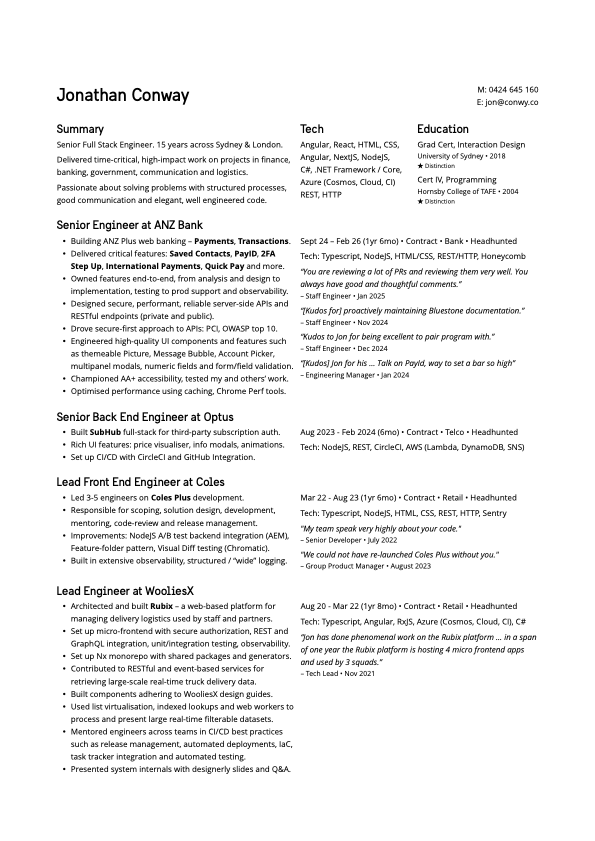
Before jumping into the word processor, I first developed a very simple pen & paper sketch, followed by a simple block diagram in Draw.io. This allowed me to experiment and tweak the design at a high level until I reached something I was comfortable with.
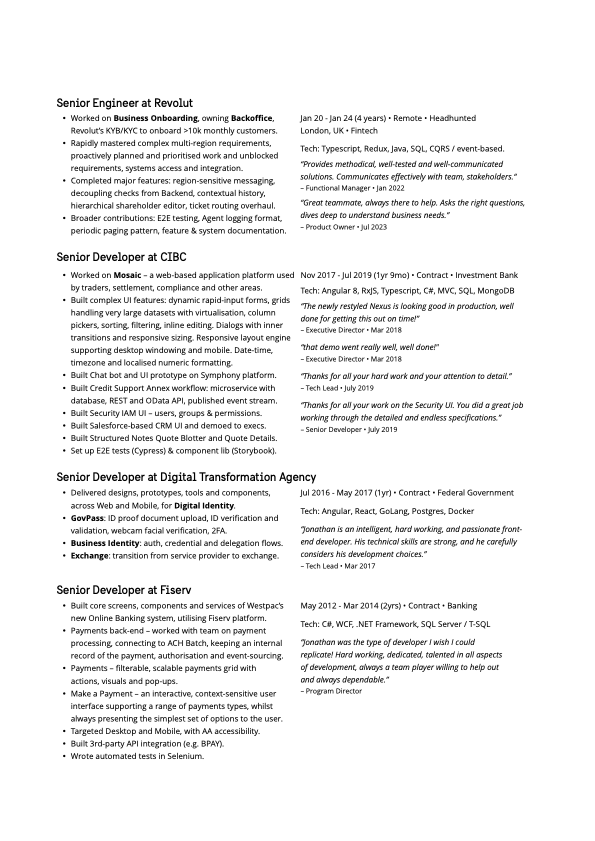
I ended up with a vertically stacked set of blocks for the jobs, with each block having a two-column layout with duties on the left and details (such as start/finish dates, tech and testimonials) on the right.
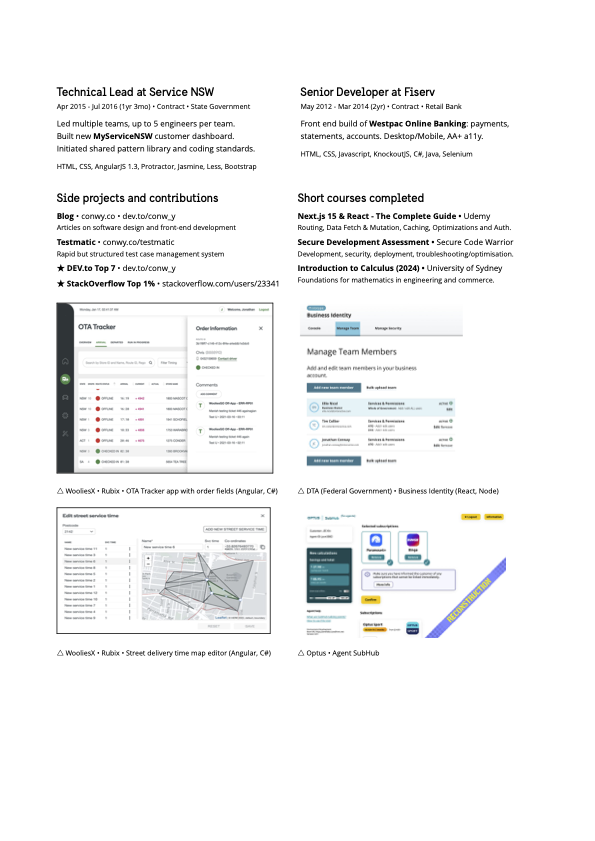
The design also includes a big header with some upfront features such as the tech I mainly focus on and my formal education. And an end section with side projects and short courses.

Implementation#
Tables are supposed to be anathema to web developers, aren't they? Well, this design is intended for a static document format (Word, PDF) or printed paper. It is not intended for the browser. Those who prefer or need to use a browser are welcome to peruse my Work section on conwy.co or my LinkedIn profile.
It was quite easy to use the native Table, Paragraph, Bullets and Style & Formatting facilities of LibreOffice, which play nicely with Word and PDF. Margins, padding and bullet style are all fully configurable, so I was get a close to perfect design.
To be sure, as I was building the CV, I frequently exported to PDF and Word to check the results.

Dancing with content#
Content writing for static documents is surprisingly different than for web, especially when working with a carefully crafted layout. You can't rely on the user's scroll bar so much, so text needs to be carefully crafted to fit inside the container.
I found myself going back and forth between Sublime Text and LibreOffice – the former to craft source material, the latter to edit it down to fit within the "real estate" of a formal document.
A few tricks in no particular order:
- Shortening month names (
Jan→ Jan, etc) - Abbreviating date intervals (
year→ yr, etc) - Reducing font size on whole lines (like testimonial author and date)
- Combining multiple details onto one line (like start/finish dates, period, industry)
- Removing unnecessary verbosity and non-essential grammar (trading off minor grammatical correctness for visual appeal)

Finishing touches#
For a finishing touch, I wanted to use a nice fancy font for headings.
After some exploration I settled on Sweden Sans, kindly made available in the public domain by the generous tax payers of one of the most liveable countries on Earth.
Web developers have it easy when it comes to interesting non-standard fonts. We just package the WOFF/TTF/ODF with our website and link to it. Or better yet, use Google Fonts and just grab a link there.
A quirk of word processors like LibreOffice, when exporting an editable format like Word/DOCX, is that you cannot rely on the end-user having installed all the required fonts.
But there's a hack! You can embed fonts in Word files. And it turns out LibreOffice fully supports font embedding. Simply go to File → Properties → Font tab and check Embed fonts in the document. This worked nicely, both for exported Word/DOCX and, of course, PDF files.

Download my template#
In the spirit of Christmas I thought I'd share my CV, accompanied by a re-usable template.
- My CV • conwy-cv.zip
- Designerly CV Template Package • conwy-designerly-cv-template-package.zip
 |  |  |