Ephemeral windows
software-development
How do you optimise your window layout when working?
It's a simple question, but opens up many options. I find it especially relevant in this new era of AI agents, where we have to manage many concurrent processes over varying lengths of time.
After experimenting with various window configurations, I've settled on this pattern:
Ephemeral windows
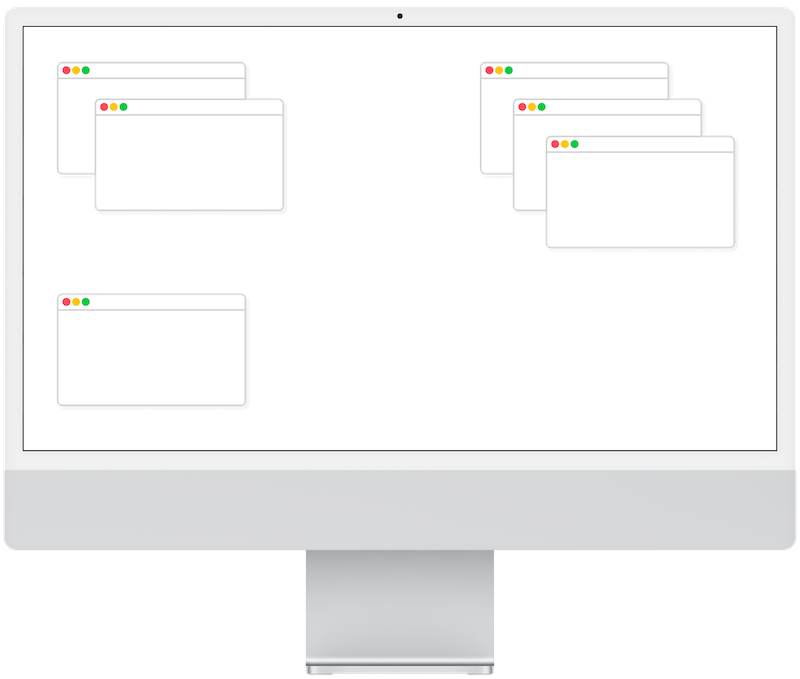
I keep multiple small windows open, each focussed a single task or theme, and only for as long as needed (hence, "ephemeral"). Whenever two or more windows are related, I group them spatially.
Window sizing, positioning and titling#
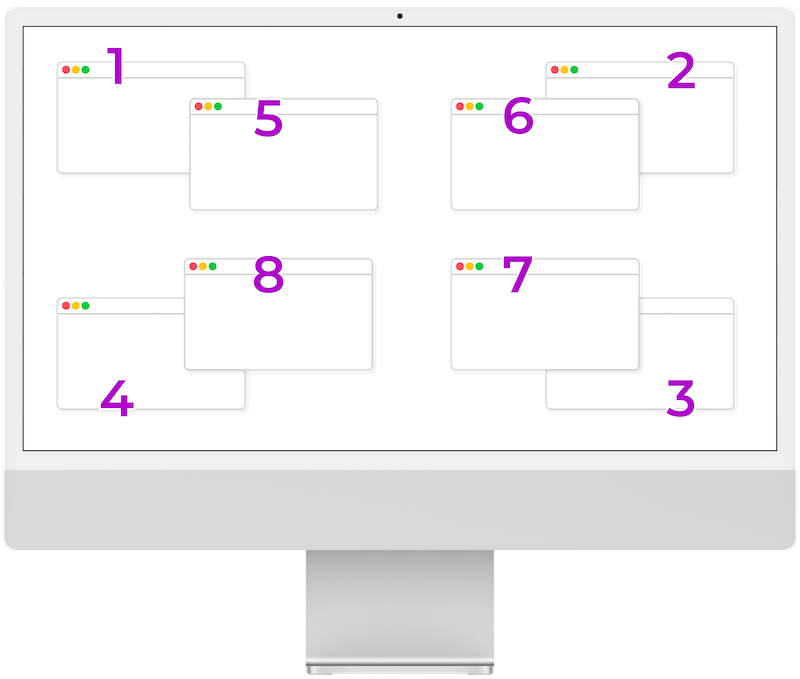
I size each window to be fairly small and keep them in quadrants of the display.
- 4 inner corners of the screen
- 4 outer corners of the screen
Whenever I need to focus on one specific window for a while, I double click its title bar to expand the window. After I'm done, I double click the title bar again to contract it back to its previous size.
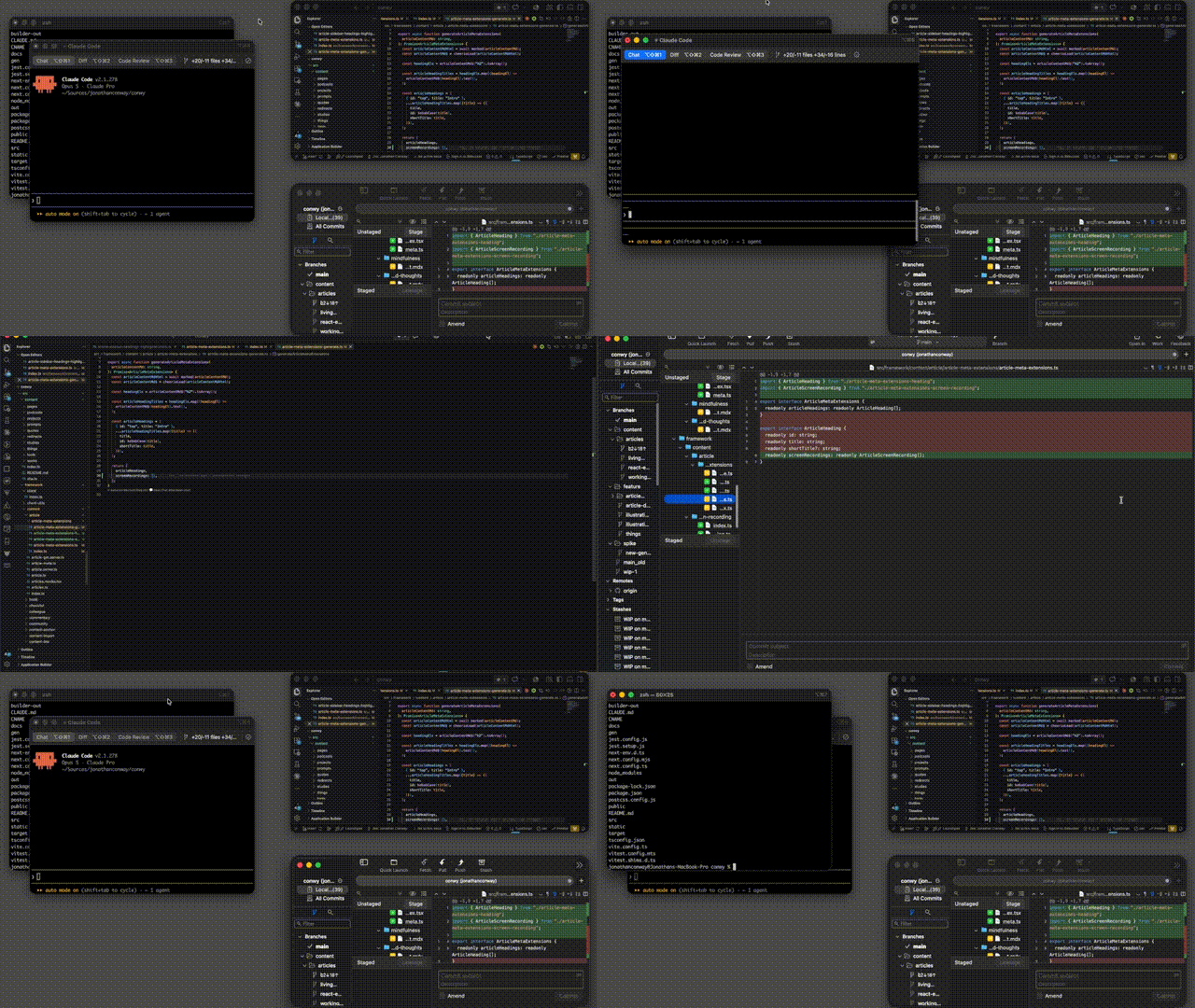
Some apps have a "Rename Title" feature. For example, iTerm2 has "Edit Window Title". Occasionally I use this feature when I have many Terminal windows open, to help me to quickly locate whichever one I need.
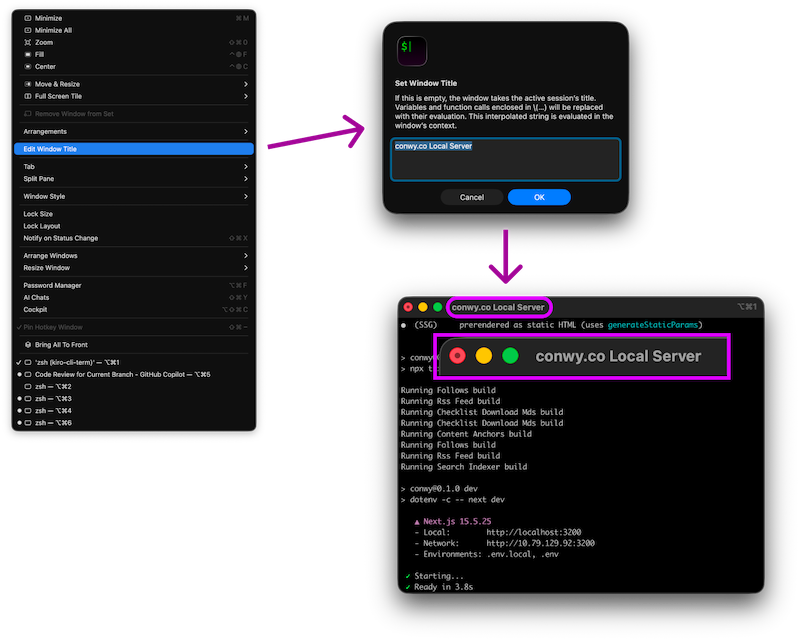
Examples and details#
Here are some common examples:
❓ Need a long-running Agent workflow?
👉 Open a new iTerm2 window and run Claude.
❓ Need to edit some code in a particular module?
👉 Open a new VS Code, IDEA, etc. window
❓ Need to do some design work?
👉 Open a new Figma window.
This works nicely with my workflows, which I find tend to be somewhat unpredictable and widely varying in time scale.
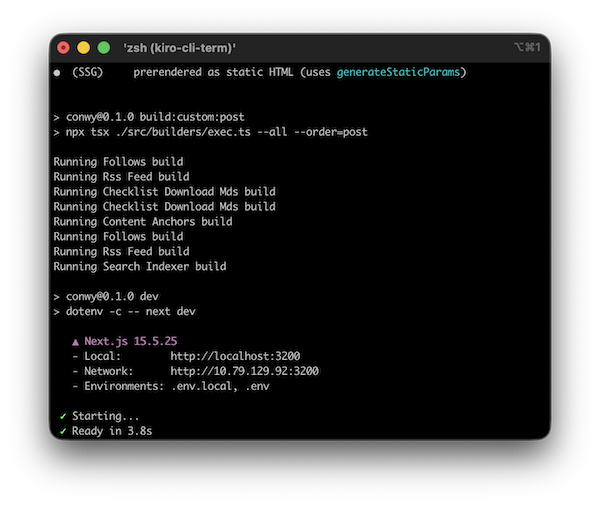
- Long-running: For example, an AI agent doing a significant piece of research might be sitting there on its own for up to 15 minutes. Or a local server might be running in the background for several hours.
- Medium-running: For example, a code code review with an AI app, perhaps paired with a VS Code instance with the same code base open and a Git client for me to quickly review the AI's changes, might only be open for 5-10 minutes.
- Short-running: For example, a quick Chrome instance just to check the day's calendar in the morning might be open for only 2 minutes.
Managing cognitive load#
For deep and focussed work, such as a complex Git operation like a merge, I find it helpful to keep the work in its own terminal window. This helps me mentally separate the work from other items. This can be particularly useful when context switching during an interruption, such as responding to an unrelated question from a team member. After the interruption I can return to the more focussed work by simply switching to the related window, with all my context still there.
AI efficiency#
I find the ephemeral window technique fits well with efficient AI use.
Assistant and model optimisation: I can use different assistants and models for different tasks. For example, Codex with a simpler model for code review but Claude with a more sophisticated model for an in-depth research or planning task.
Phase optimisation: I can keep different phases (e.g. research, plan, implement) in separate windows.
For example:
- One AI assistant researching a task in one window
- A second AI assistant planning a second task in a second window
- A third AI assistant implementing a third task in a third window
This is great for token efficiency. Having AI agent focussed on a specific phase minimises the context window of each agent, reducing token usage.
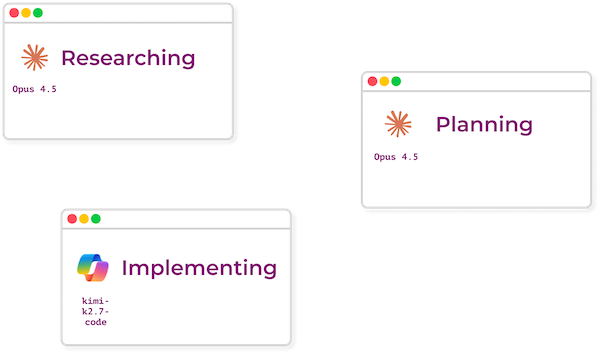
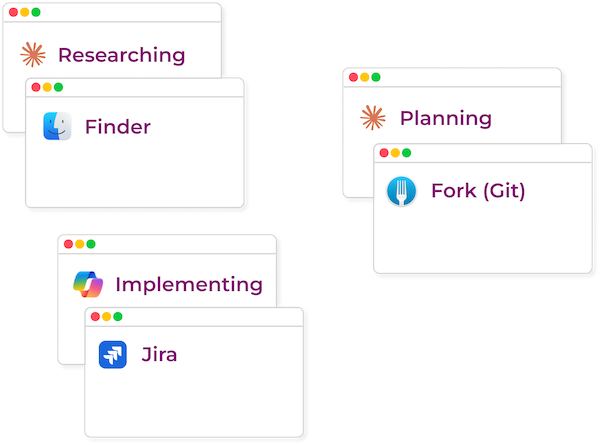
Grouping assistants with related apps: I can also group each AI assistant window with related windows.
For example:
- Grouping an AI researching window with the related files in a Finder window
- Grouping an AI planning window with the associated Jira task in a browser window
- Grouping an AI implementing window with a view of the changes it's making in a Fork (Git client) window
Micro services and micro front ends#
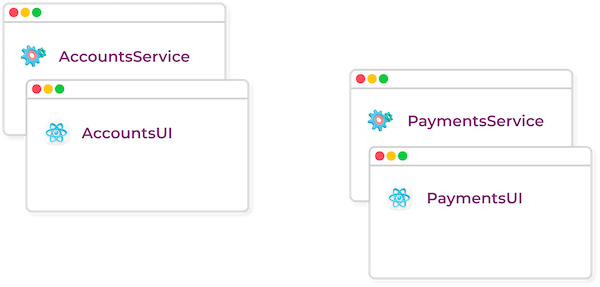
I find this setup also works well in a micro front end or micro services context, where I often have each work item touching multiple separate repositories or folder structures.
For example, it's not uncommon that one piece of work might straddle:
- Two micro services. For example: PaymentsService, AccountsService
- Two micro front ends: For example: PaymentsUI, AccountsUI
Depending on the nature of the work, I can group the windows however makes sense.
- Put the micro services windows in one group and the micro front end windows in another group
- Put the Payments related windows in one group and the Accounts related windows in another group
Alternatives considered#
Before settling on ephemeral windows, I did experiment with various alternatives:
Each of the above seemed to have cons that outweighed the pros, at least for my own workflows.
Terminals with split panes are great for viewing at-a-glance closely related concurrent processes.
⛔️ But they don't cater for non-Terminal work, such as IDE or in-browser tools. And they waste screen real estate if one pane completes while others are still running.
MacOS workspaces allow for any type of window, grouped together into a single screen full. Screen real estate efficiency isn't an issue as we have the whole screen to work with.
⛔️ But switching between them gets clunky. Also, weird issues happen when trying to create a new window for an already running application, such as a new terminal or browser window – the new window shows up in the wrong workspace and it's tricky to move it to a different workspace.
IDE-integrated terminals are great if all my work can be done in either an IDE and terminal. I can quickly switch between terminal instances and IDE with keyboard shortcuts. And terminal instances can be very flexibly arranged, with tabbing, vertical or horizontal stacking, etc.
⛔️ Unfortunately this doesn't work so well with browser, design tools or other windows. Sure, there are IDE plugins, but they tend to have narrower feature sets and lousy support.
Conclusion#
I find this setup of lots of small, ephemeral windows easier to manage than trying to force everything into just one window or app, such as a Terminal with split panes or an IDE.
You might recall a phase in the early 2010s, when it was fashionable to do everything in the IDE. And another phase later in the 2010s, when it was fashionable to do everything in the Terminal. In a funny way, working with agents and heterogeneous tools, it feels like I've come full circle, back to the old school 90s world of GUIs and windowing.