Escaping JSON
software-development
It's not uncommon to encounter encoded JSON strings, embedded in content such as log output, NoSQL database query results and SQL database query results with nested JSON fields.
This JSON has escape sequences (for example: \" for double quotes) and also tends to be compressed into one stream of text, with no indentation. This makes it difficult to read and analyse.
JSON like this can be quickly unescaped and formatted nicely, but you need to have the right tools at hand. I did some searching, AI prompting, exploration and trial & error and settled on a couple of practical solutions.
Example#
One recent case I encountered was viewing structured logging output in DynaTrace, generated by a .NET Core service via the Microsoft logging extensions, passing a whole object as a parameter, serialised to JSON.
For example, we have a logging statement like this:
_logger.LogDebug(
  "Response has {CustomerProfile} customer profile; {OrderCount} orders.",
  JsonSerializer.Serialize(customerProfile),
  customerOrders.Count
);
Producing output like this in a log entry:
{
  "Timestamp": "2026-09-25T02:06:03.6723423+08:00",
  "EventId": 0,
  "LogLevel": "Debug",
  "Category": "MyProject.OrderApi",
  "Message": "Response has {\"UserName\":\"conwy\",\"FullName\":\"Jonathan Conway\",\"Email\":\"jon@conwy.co\"} customer profile; {3} orders.",
  "State": {
    "Message": "Response has {\"UserName\":\"conwy\",\"FullName\":\"Jonathan Conway\",\"Email\":\"jon@conwy.co\"} customer profile; {3} orders.",
    "CustomerProfile": "",
    "OrderCount": 3,
  }
  ...
}
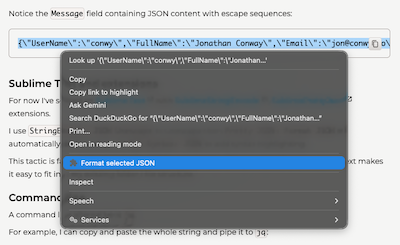
Notice the Message field containing JSON content with escape sequences:
{\"UserName\":\"conwy\",\"FullName\":\"Jonathan Conway\",\"Email\":\"jon@conwy.co\"}Web tools and browser extensions#
I tried searching for Chrome extensions that could format any piece of JSON, but was unable to find one.
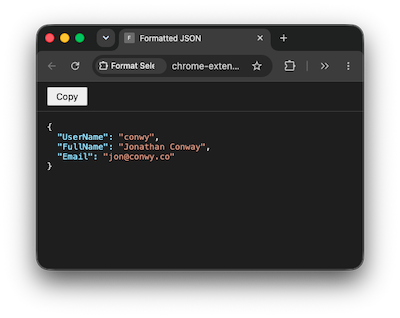
AI to the rescue! Using Claude Code, I vibe coded a simple Chrome extension that turned out to do the job well!
You can access it here Format Selected JSON.
The code and prompts used to generate it are open source and available here: json-selection-formatter.
 |  |
Sublime Text and extensions#
Browser extensions might not be suitable for sensitive data that needs to be kept private and/or corporate environments where browser extensions are blocked.
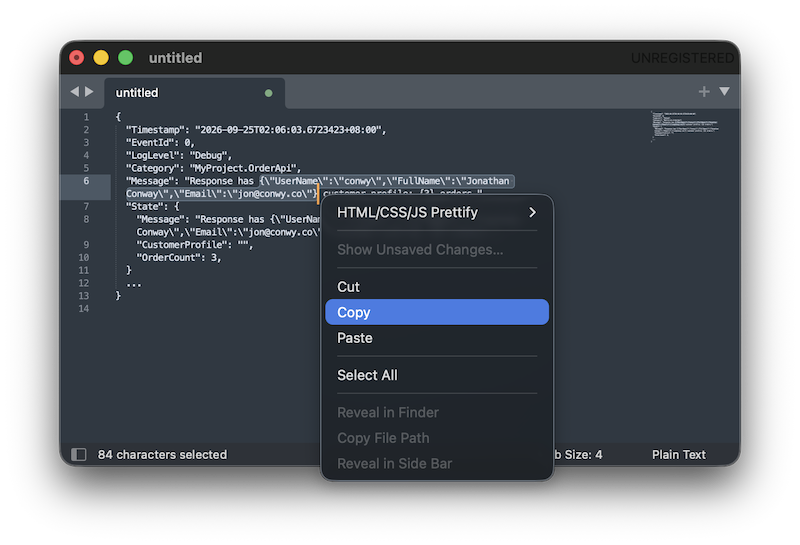
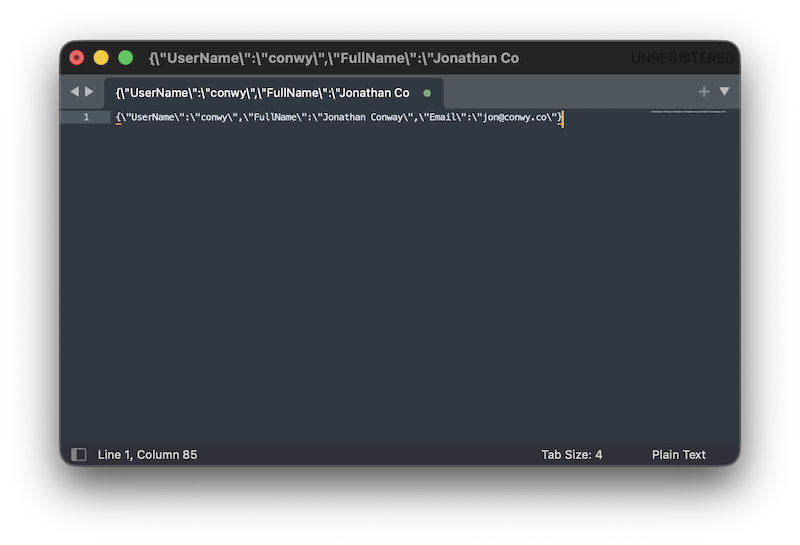
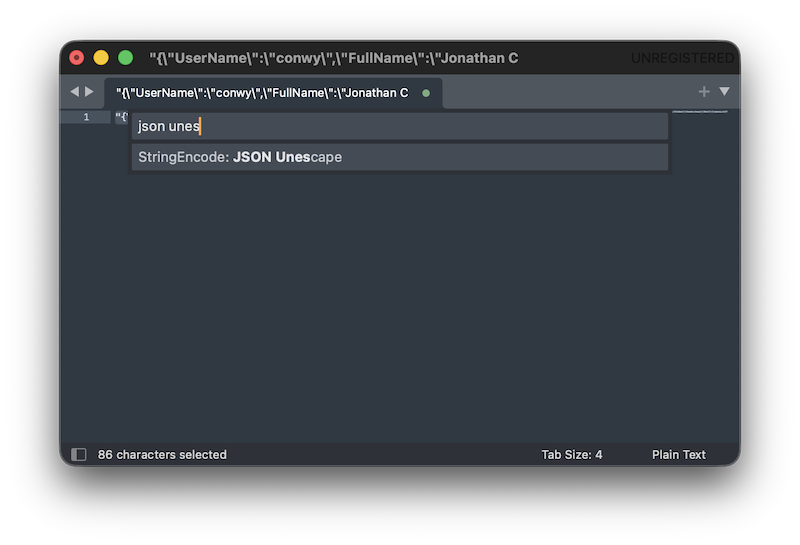
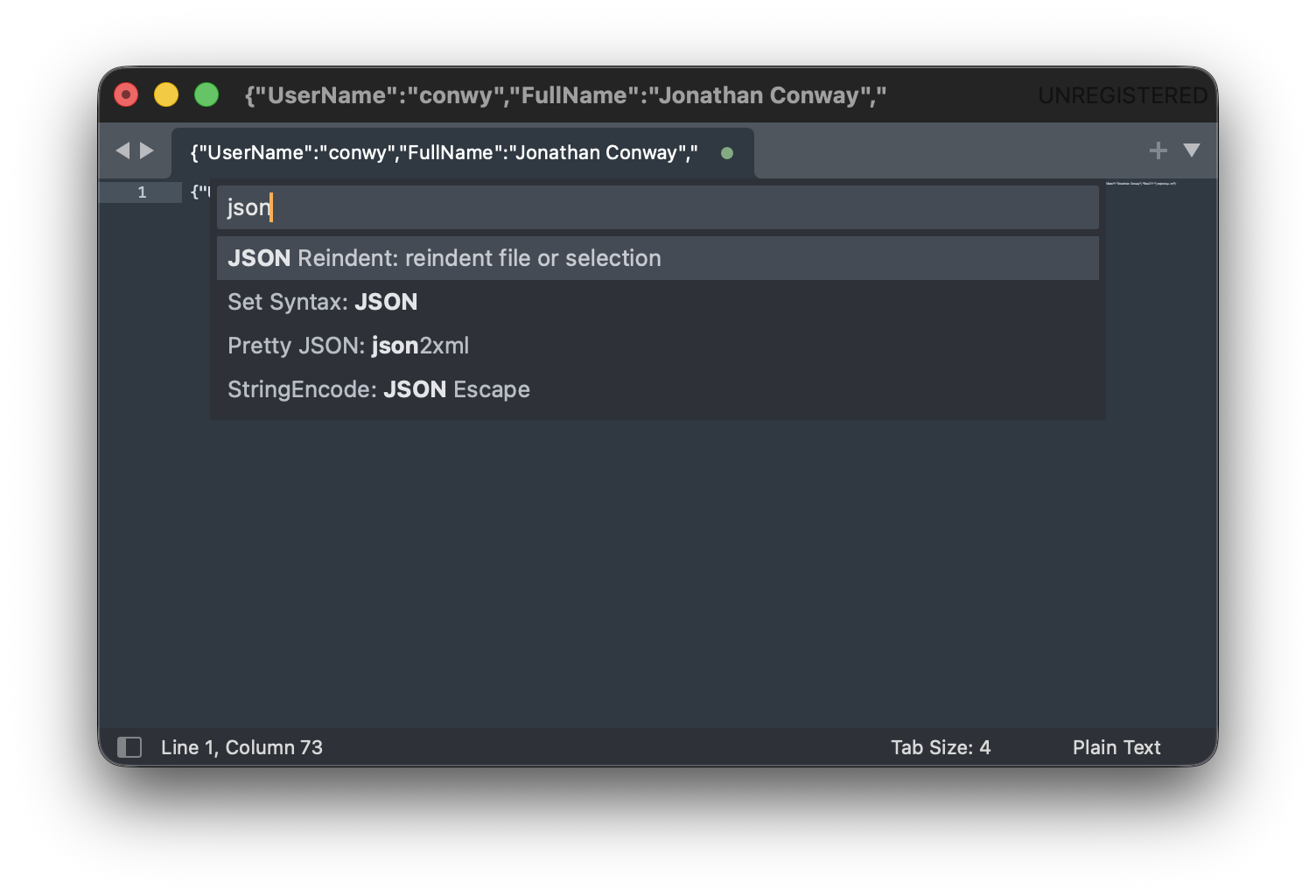
For sensitive, work related or file system based work, I've found a good solution: Sublime Text with SublimeStringEncode, SublimePrettyJson extensions.
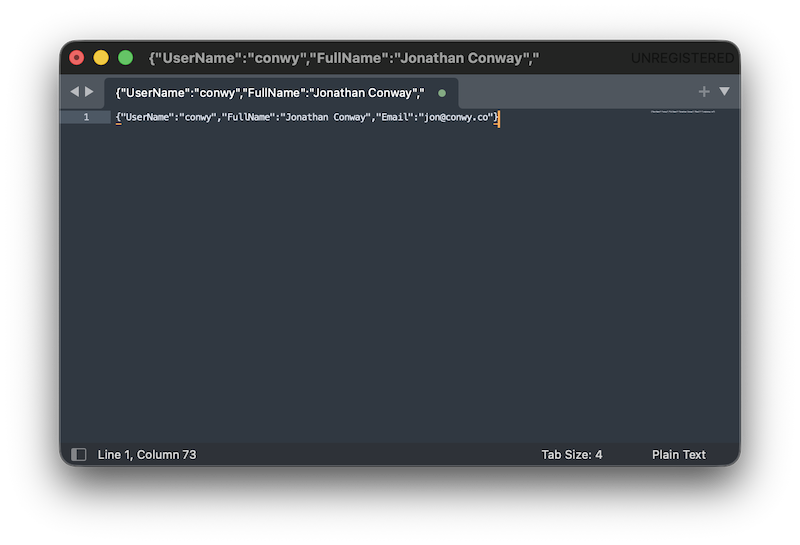
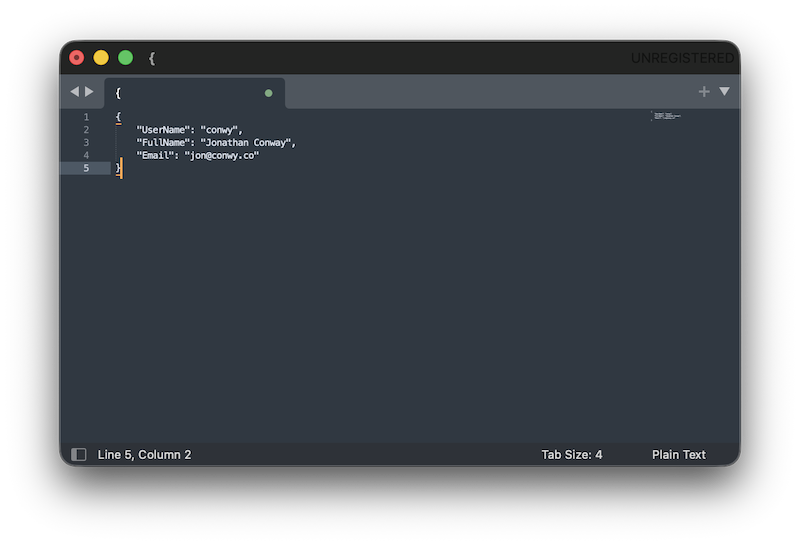
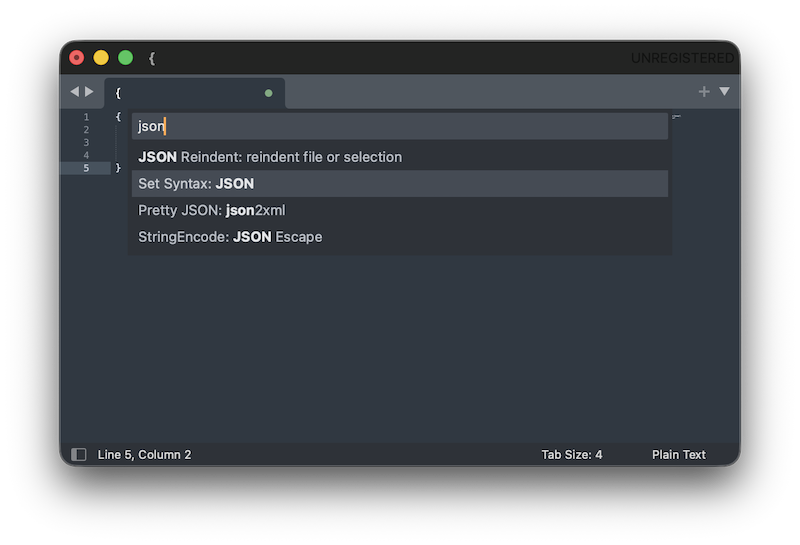
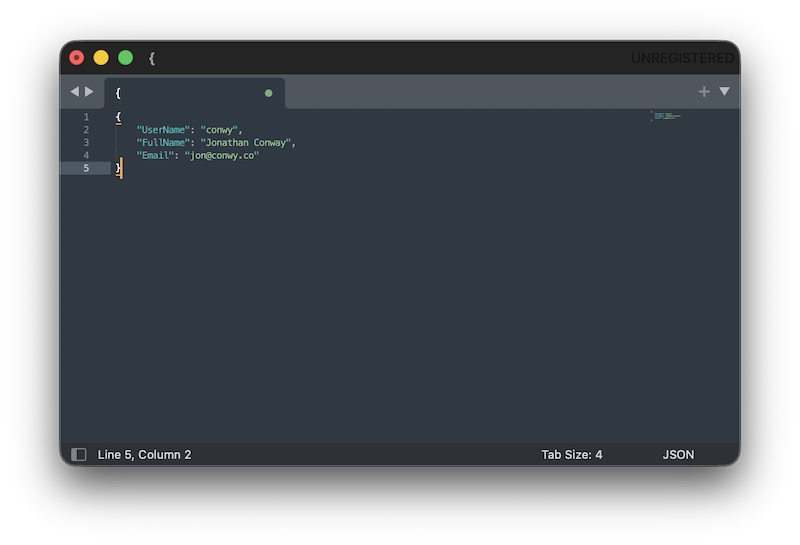
I use StringEncode: JSON Unescape to unescape then Pretty JSON: Format JSON to automatically add spacing and Set Syntax: JSON to add syntax highlighting.
This solution is fast, reliable and private (keeps data locally). Being integrated into Sublime Text, it fits easily into my existing folder / file structure and file based workflows.
 |  |
 |  |
 |  |
 |  |
Command line#
A command line alternative is jq.
For example, I can copy and paste the whole string and pipe it to jq:
echo '"{\"UserName\": \"conwy\",\"FullName\": \"Jonathan Conway\",\"Email\": \"jon@conwy.co\"}"' | jq -r '.' | jq '.'Or I can copy it to the clipboard, read (using e.g. pbpaste on MacOS) and echo out.
pbpaste | jq -r '.' | jq '.'The output is neatly indented:
{
  "UserName": "conwy",
  "FullName": "Jonathan Conway",
  "Email": "jon@conwy.co"
}
Closing remarks#
Hopefully major logging tools will future provide this kind of unpacking out of the box.